Review possible driving access
Location and activity permissions can reveal pieces of how you move. Granted permissions appear first, with your apps and system apps clearly separated.
A driving privacy check for Android
Your driving.
Your data. Your call.
Find apps with permissions that could reveal your driving activity. See which apps have location access, too. Then decide what to change.
Core features tested on Samsung Galaxy S26+ / Android 17. Permissions show possible access, not proof of recording or sharing trips.
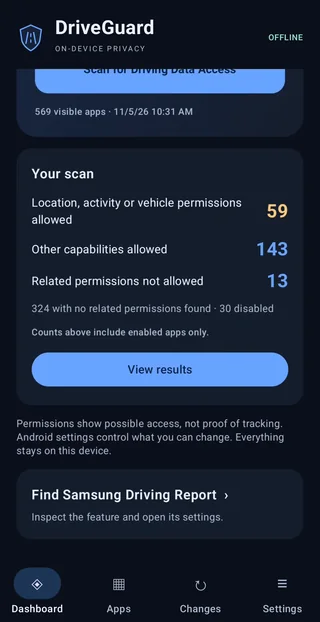
Actual phone screen · results vary by device.
Start with the driving data
A location permission here. Physical activity access there. A preinstalled driving feature you never noticed. Understanding the pieces should not require an afternoon in Settings.
DriveGuard brings visible apps and their relevant permissions together. Check precise or approximate location, background location, physical activity and related Bluetooth or Wi-Fi capabilities. Find possible Samsung Driving Report matches and see whether an app is enabled or disabled.
It gives you a useful starting point for a driving privacy check. It cannot confirm that an app monitored a journey, recorded your driving behavior, or sold your data.
Location and activity permissions can reveal pieces of how you move. Granted permissions appear first, with your apps and system apps clearly separated.
Notice which apps are reported to have precise or approximate location access. Open an app to check background location and physical activity separately.
Manage this app opens Android’s App info. Change permissions, uninstall, or try Disable when Android offers it. Some preinstalled apps cannot be uninstalled.
Free. No ads, accounts, subscriptions or analytics. DriveGuard has no internet or location permission of its own.
A real phone. A short walkthrough.
A 31-second edit from the Galaxy S26+ test: run a scan, read the results, inspect Samsung Driving report and open Android’s settings.
Silent, captioned video · DriveGuard 0.2.1 · Android 17. Selected scenes play at normal speed. Personal app lists and system status bars are omitted.
Start with a driving privacy check. Scan the apps Android makes visible. Know what is allowed: location, activity and other capabilities are separated. Find Samsung’s Driving report and inspect its permissions and enabled status. Disabled means still installed; this example was already disabled. Manage this app opens Android’s own settings. See location access too: reported permissions are not proof of tracking. DriveGuard is free, offline and has no account.
From the phone test
Actual screens from a Samsung Galaxy S26+ running Android 17. Counts and available controls depend on the phone.
Free Android download
Download the APK, an Android installer. This is a direct website release, not a Google Play listing.
Compare this checksum with the downloaded file to check it arrived intact.
676e6b7444168fb398c5130dae398c7c3346c09c5950af3686e26a99b9d266e9Getting started
No. DriveGuard checks permissions Android reports, not private trip records, live access logs or network traffic. It helps identify potential access worth reviewing. It cannot prove that an app recorded, shared or sold driving information, and missing related permissions do not establish that no data collection is possible.
Maps, weather, Bluetooth services and other everyday features can legitimately use location or movement-related permissions. Appearance in the list is not a finding of wrongdoing. Review whether the access makes sense for how you use that app; avoid disabling essential phone components.
Some preinstalled apps cannot be uninstalled through normal settings. Android may offer Disable instead, or let you change permissions. Disabling can affect related features. DriveGuard opens the controls and refreshes observed status; it does not silently remove or disable anything.
Bluetooth and Wi-Fi permissions can supply indirect context, but they do not automatically provide a GPS route or vehicle telemetry. Denied permissions and unknown states are separated, too. Expand Other related permissions or Technical details for the underlying declarations.
Install updates over the existing DriveGuard copy to preserve settings and local history. The signed 0.2.1 update was tested on the Galaxy S26+. Optional monitoring in Settings compares app versions and permission flags during later scans. Android controls background timing and may delay checks. Notification delivery and wider phone compatibility still need more testing.
The installed-app inventory, local permission baseline, settings and up to 100 change events stay on your phone. DriveGuard cannot inspect apps Android hides, other profiles, Secure Folder or every OEM restriction. It does not scan a car or connect to your vehicle. Read the privacy details for its data use and limits.
Found a mismatch? Use the contact page and include your phone model, Android version and DriveGuard version. Share only screenshots or recordings you intend to send.