A little Chrome helper
Quiet Banners
Less banner.
More browser.
Close a tab. Watch a video. Quiet Banners tries to dismiss Chrome’s Closed tab / Undo banner and full-screen reminders for YouTube and embedded X/Twitter videos, so you can get back to what you were doing.
English Google Chrome only. Banners can flash briefly; compatibility varies by phone and Chrome version.
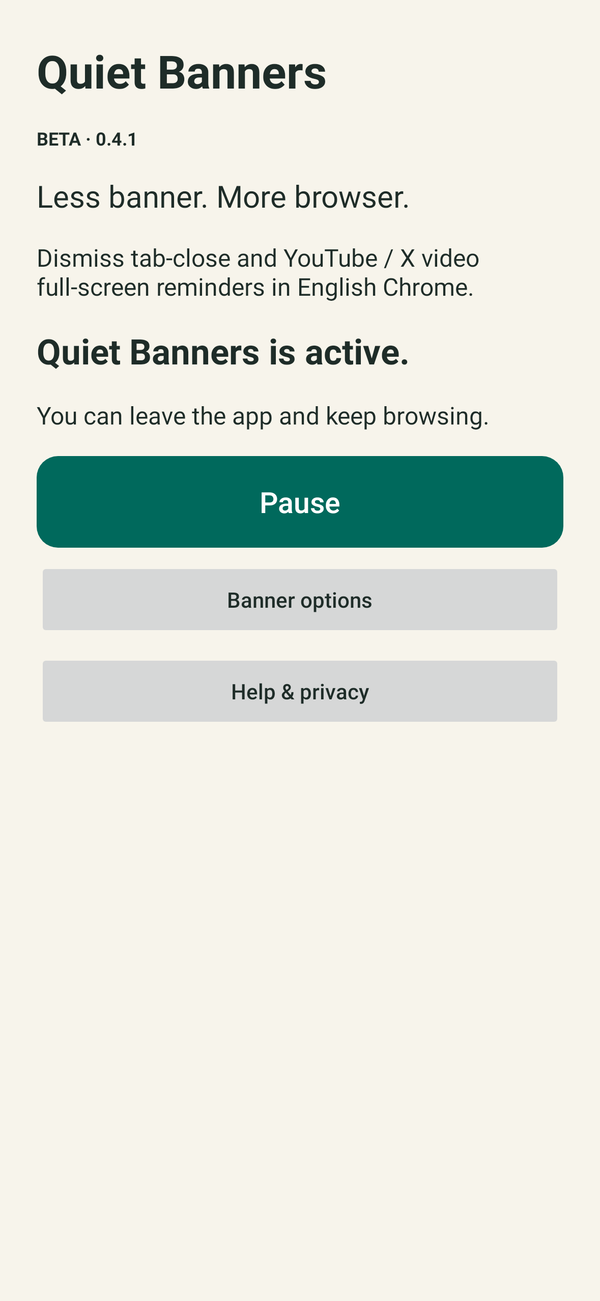
Rendered preview from beta 0.4.1. One main control: Enable, Pause, or Resume.
One small job
Fewer tab and video banners.
A little less waiting.
Quiet Banners recognizes these native Google Chrome messages:
- Closed tab / Undo: the banner after closing a tab.
- YouTube full-screen reminder: the “To exit full screen…” message for m.youtube.com.
- X / Twitter full-screen reminder: the same message for platform.twitter.com when watching an embedded X video.
When it recognizes one, it tries to dismiss it or swipe it away.
It works after the banner appears. It doesn’t switch off Chrome’s messages or promise an invisible result. It never presses Undo or Back.
No ads, accounts, subscriptions, analytics, or internet permission. The app works locally after you grant Accessibility access.
A quick phone demo
Close it.
Keep browsing.
See Quiet Banners enabled, a Chrome tab closing, and the Undo banner being swiped away. The first demonstration plays at normal speed, followed by a paused frame and a labelled, enlarged replay at one-quarter speed.
About 25 seconds · silent, unblurred phone footage with step-by-step captions. Paused frames and the slow replay are labelled. Recorded with test build 0.1.1; public beta 0.4.1-beta has a simpler interface, shorter tab-dismissal timings, and support for YouTube and embedded X/Twitter full-screen reminders. This clip demonstrates the tab-close banner.
Video description
The clip introduces Quiet Banners and shows Auto-dismiss switched on. Captions explain that Accessibility access is already enabled. A real-time phone recording shows a tab closing and the Closed tab / Undo banner appearing briefly at the bottom, then sliding right. A paused, enlarged frame identifies the banner. A labelled one-quarter-speed replay shows the automatic swipe and explains that the app never taps Undo or presses Back. Closing text says the app dismisses banners after they appear, a brief flash can remain, and the Android public beta is free. No spoken audio.
Free Android public beta
Small app.
No price tag.
Download the APK, an Android installer. This is an experimental website release, not a Google Play listing.
0.4.1-beta simplifies setup to Enable, Pause, and Resume, keeps tab dismissal quick, and rechecks full-screen reminders after rotation. If a supported full-screen reminder stays visible, it can make one targeted retry. The developer reports a successful phone test after the YouTube fix. Install over the earlier official beta to keep your settings. Compatibility still varies by phone and Chrome version.
- Version
- 0.4.1-beta · November 5, 2026
- Requires
- Android 11+ · English Google Chrome · Accessibility access
- APK download
- 53.8 KB · 53,808 bytes
- File
- Quiet-Banners-0.4.1-beta.apk
Check your download · SHA-256
Compare this checksum with the downloaded file to check that it arrived intact.
07eb47fd1a5b67989e75be1480d49d3c2b3a11ce686c80b26b4042d29bce6b53Getting started
A few taps.
Then back to Chrome.
- Install the APK. Open the file on your phone and follow Android’s prompts. If asked, allow installation from the browser or file manager you used, then turn that source permission off afterwards. If you temporarily disabled Samsung Auto Blocker to install the APK, turn it back on after installation. Keep Play Protect enabled. If Android identifies the app as harmful, stop and contact us.
- Open Quiet Banners. Tap Enable Quiet Banners, read the disclosure, and choose Enable and continue. Choose Installed apps → Quiet Banners in Android’s Accessibility settings and turn it on. Dismissal starts when Android connects the service; no extra Auto-dismiss switch is needed.
- If access is denied or greyed out: return to Quiet Banners, open Help & privacy, and tap Open Quiet Banners App info. On that page, tap ⋮ → Allow restricted settings and confirm. Return to the app and use Enable Quiet Banners again. Some phones show that menu option only after you try enabling the service and close the denial message.
- Check Active, then browse. Return to Quiet Banners and check that it is active. Tap Resume if it is paused. Banner options lets you choose the three supported reminders. Test with a disposable tab, a YouTube website video, and an embedded X/Twitter video in Chrome. Pause stops dismissal until you tap Resume.
Accessibility access grants broad screen-reading and gesture capabilities. This app uses that access to recognize the selected native Chrome banners and attempt dismissal. Read the privacy details before enabling it.
Already using the test version?
Install the beta over your existing Quiet Banners Test app. The package is retained and the release includes a signed key-rotation lineage to support updating without clearing preferences. The launcher name becomes Quiet Banners. The release update has been checked with Android signing tools; the developer reports a successful 0.4.1-beta phone test after the YouTube full-screen fix. Other phones and Chrome versions may behave differently. Check Accessibility access and the Active status after updating. A deliberate pause stays paused. Don’t uninstall first if you want to keep your settings.
How do I pause it or remove access?
Tap Pause. Tap Resume when you want dismissal again. This stops dismissal attempts but keeps Accessibility access enabled. To remove that access entirely, open Settings → Accessibility → Installed apps → Quiet Banners and turn the service off. Uninstalling also removes the app and its local preferences.
What if it doesn’t help, or a banner stays longer?
Some Chrome versions keep banners visible longer when a gesture-capable Accessibility service is enabled. If that happens, turn Quiet Banners off in Android’s Accessibility settings; pausing dismissal alone doesn’t revoke that capability. Swipes can also interrupt a touch in progress. Stop the helper if it interferes with your use.
Will it block other pop-ups or notifications?
No. This beta targets only the described English Chrome banners. The X option matches the native platform.twitter.com full-screen reminder. It does not hide the “Continue watching on X” player button or operate inside the X app. It doesn’t block ads, website pop-ups, Android notifications, other browsers, or other apps. Different wording, layouts, or Chrome versions may not match.
Does the counter prove a banner disappeared?
No. The counter in Help & privacy counts dismissal attempts. The Full-screen check line also shows whether a supported reminder was detected and the latest result, in memory only. A reminder no longer visible may have expired or been closed manually; neither display proves the app removed it.
Beta feedback is welcome through the contact page. Include your phone model, Android version, Chrome version, and which banner you tested. Share screenshots or recordings only if you’re comfortable with their contents.